
The VMOBACKUP portal lets you restore Microsoft 365 data from any available backup. You can restore an entire mailbox, OneDrive, site, or team, or browse to individual items and restore only what you need.
What You Can Restore
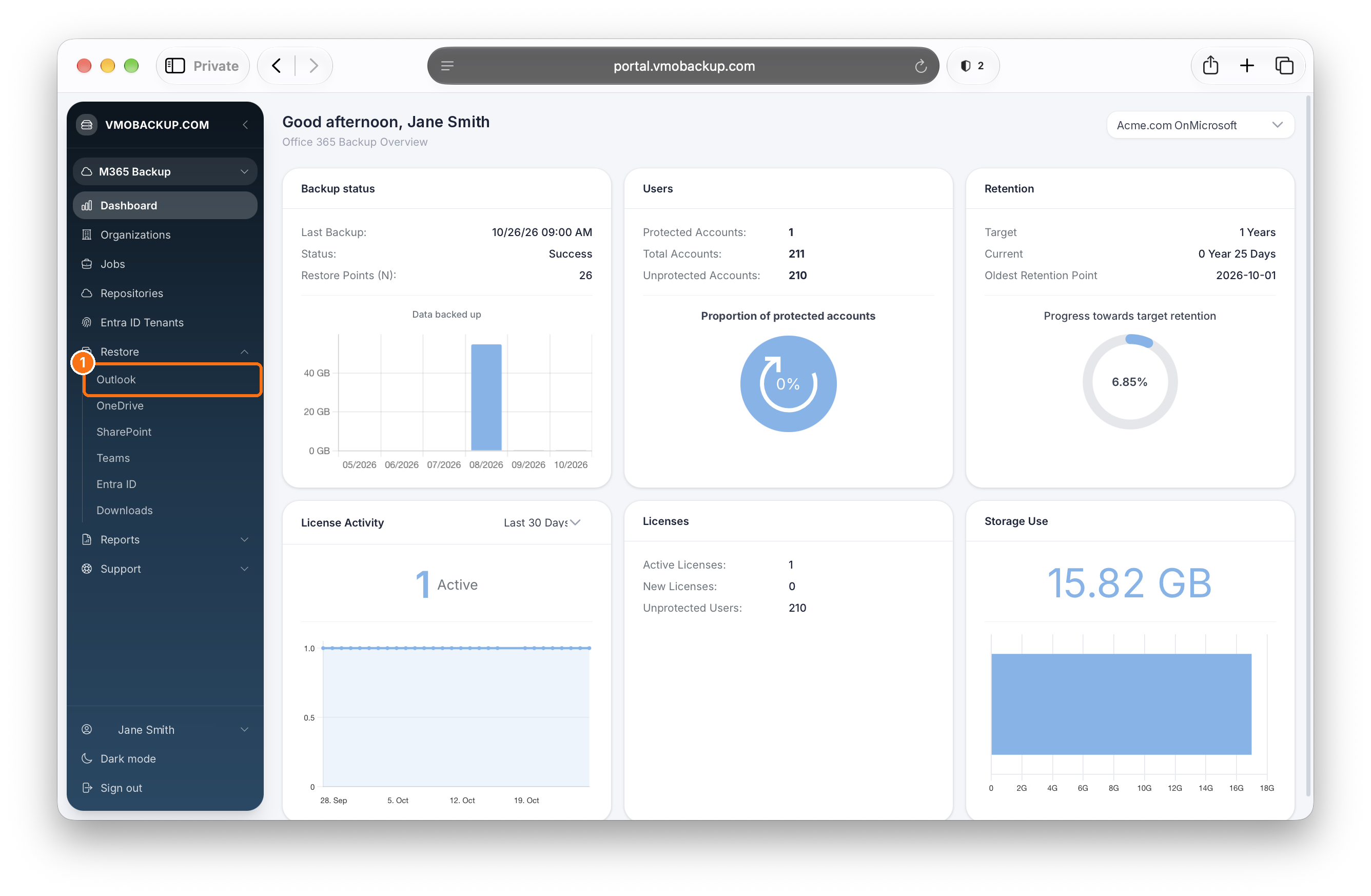
From the left-hand navigation, expand Restore to see the available restore types. Each type has its own guide:
- Restore Outlook Mail Items: mailboxes, folders, and individual emails
- Restore OneDrive Files and Folders: a user’s entire OneDrive or individual files
- Restore SharePoint Items: entire sites, subsites, and site content
- Restore Teams Data: entire teams or channel posts, files, and tabs
How Restores Work
Every restore follows the same basic steps, no matter what type of data you are restoring:
- Select a backup job. Choose the job that backed up the data you need.
- Select a restore point. Each restore point is a snapshot of your data at a specific backup time. Choose the one from before the data was lost or changed.
- Browse the restore session. Selecting a restore point opens a restore session, where you can browse and search the backed up data as it existed at that time.
- Choose what to restore. Restore everything for a user, site, or team, or select individual folders and items.
- Choose where to restore it. Pick a restore destination and any advanced options, then start the restore.
You can switch to a different restore point at any time by clicking Change next to the current restore point at the top of the restore session.
Restoring Deleted Items
By default, the restore session shows data as it existed at the selected restore point. To also show items that users deleted, turn on Include items deleted by user at the top of the page.
Restore Destinations
When you start a restore, a confirmation window lets you choose where the data goes:
- Original Location: restores the data to where it came from.
- Local computer (Download): downloads the data directly to your computer. Best for individual items or small amounts of data.
- Download in background: prepares the download in the background so you can keep working. Use this option for large downloads, such as an entire mailbox.
Available options depend on the type of data and what you selected. For example, download options are not available when restoring an entire SharePoint site or team, but are available for individual files.
| Restore type | Original location | Download |
|---|---|---|
| Outlook | Yes | Yes (msg or pst) |
| OneDrive | Yes | Yes |
| SharePoint | Yes | Individual items |
| Teams | Yes | Individual files |
When to Use Download in Background
Choose Download in background when downloading a large amount of data, such as an entire mailbox, a full OneDrive, or a large folder. Large downloads can take a while to prepare, and a background download lets the portal prepare the file while you continue working.
Once the download is ready, find it under Restore > Downloads.
Advanced Options
Some restores include advanced options that control which items are restored. Common options include:
- Changed Items: restores items that have been modified since the backup.
- Missing Items: restores items that no longer exist in the original location.
SharePoint and Teams restores include additional options, such as restoring permissions, members, and settings. See each restore guide for details.