
Open SharePoint Restore and Select the Backup Job
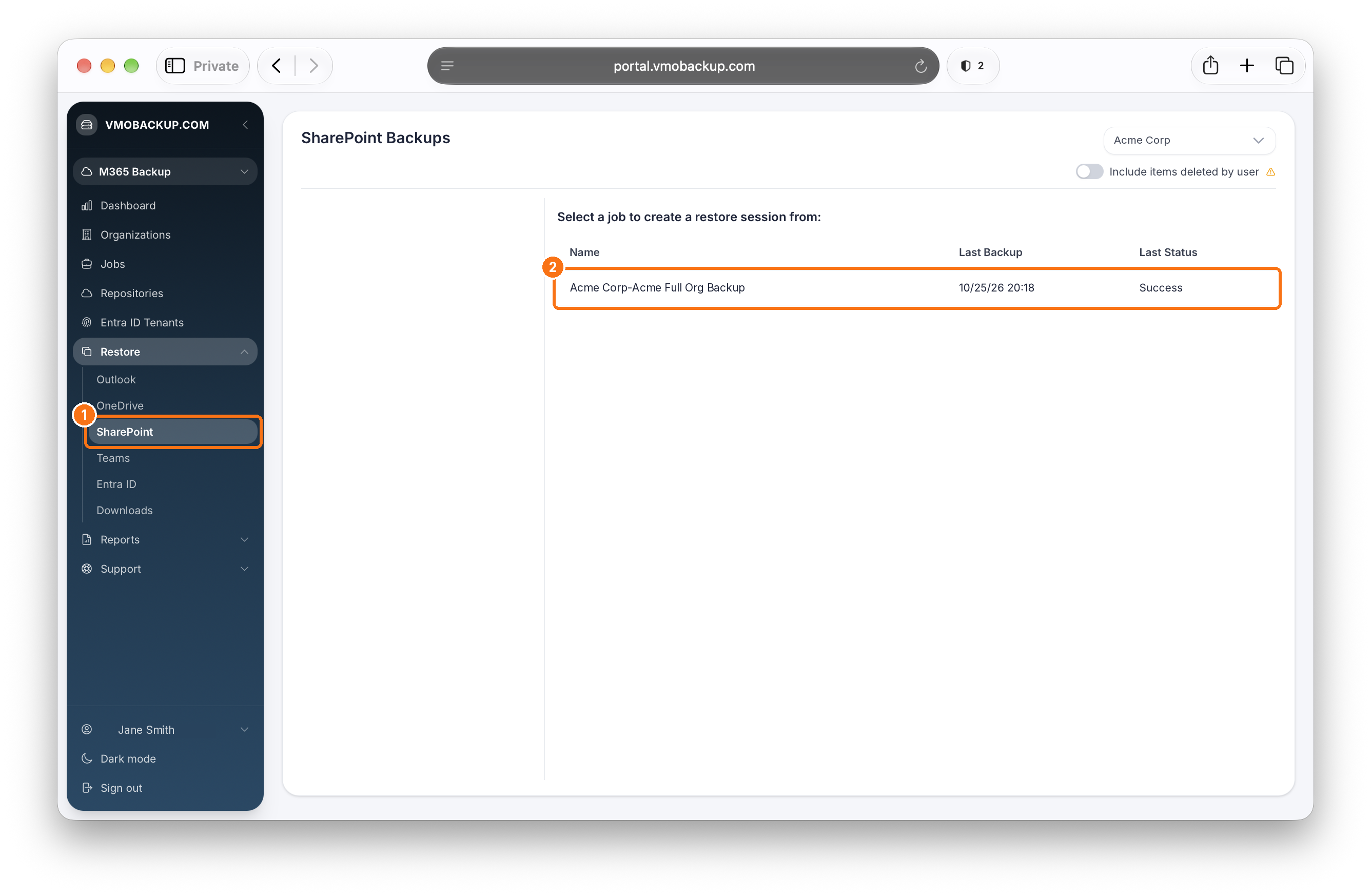
From the left-hand navigation, expand Restore and click SharePoint. Then click the backup job you want to restore from.
Select a Restore Point
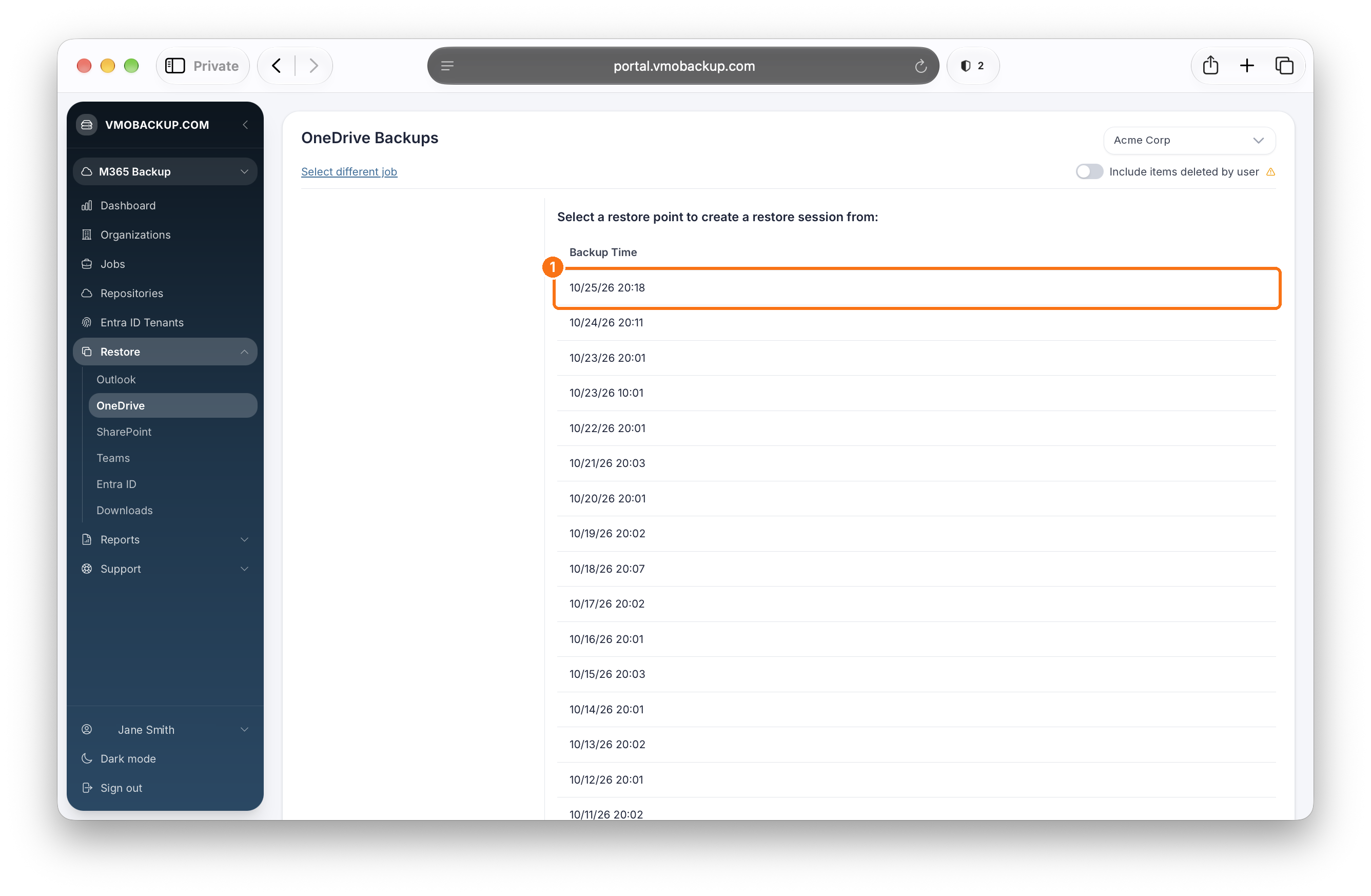
Click the restore point you want to create a restore session from. Restore points are listed by backup time, with the most recent at the top. To pick a different job, click Select different job.
Select the Site
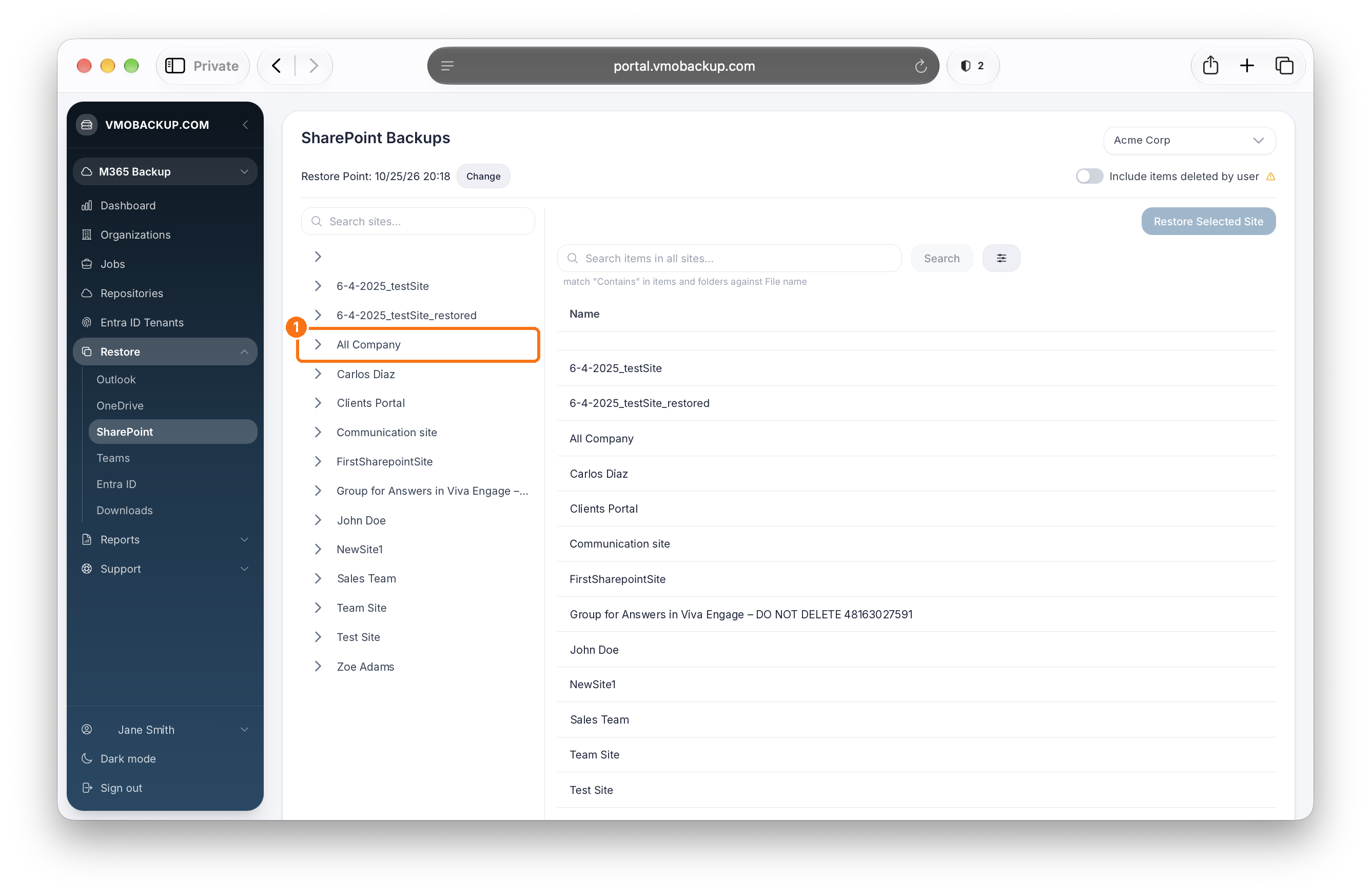
Select the site you want to restore from. You can search for a site with the Search sites field.
Restore the Entire Site
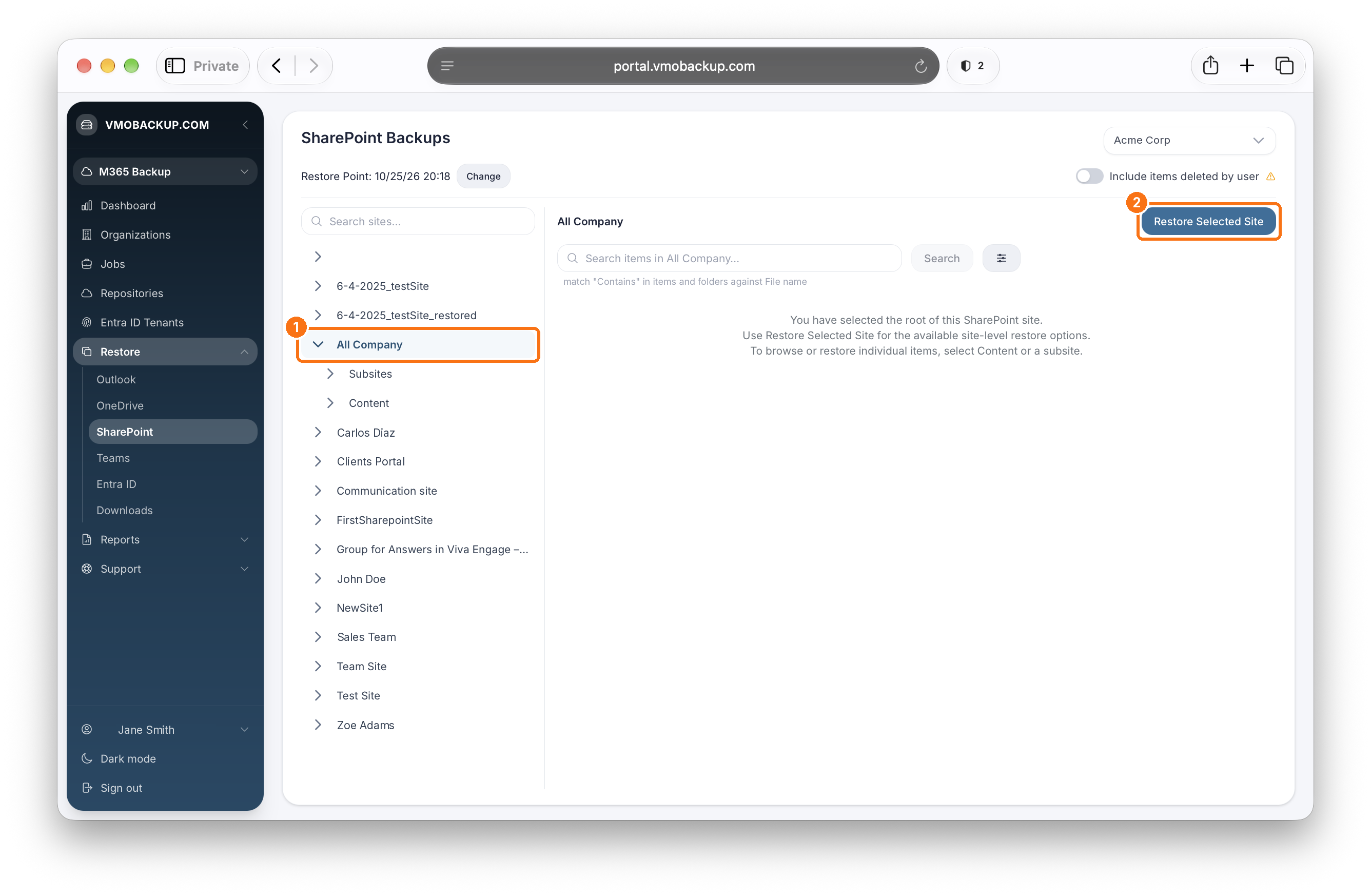
To restore the entire site, click Restore Selected Site and continue to Choose Restore Options below.
Restore Specific Items
To restore individual items, expand the site and select Content or a subsite under Subsites to browse its contents. Select the items you want to restore, then click the restore button and continue to Choose Restore Options below.
To include items users deleted, turn on Include items deleted by user at the top of the page.
Choose Restore Options
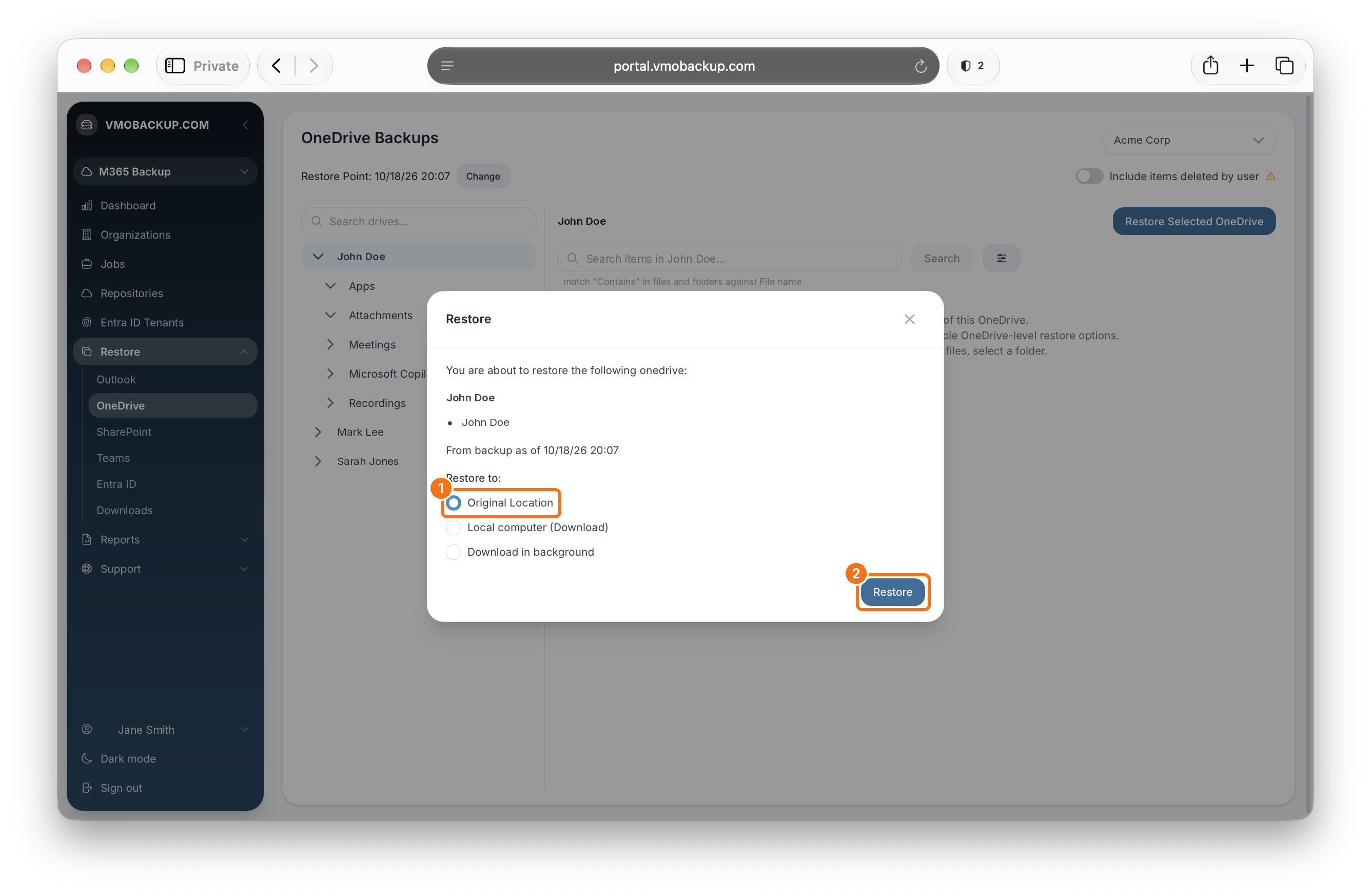
A confirmation window will appear showing what you selected and the backup date. Under Restore to, choose one of the following:
Original Location
Restores to the same site. Click Restore.
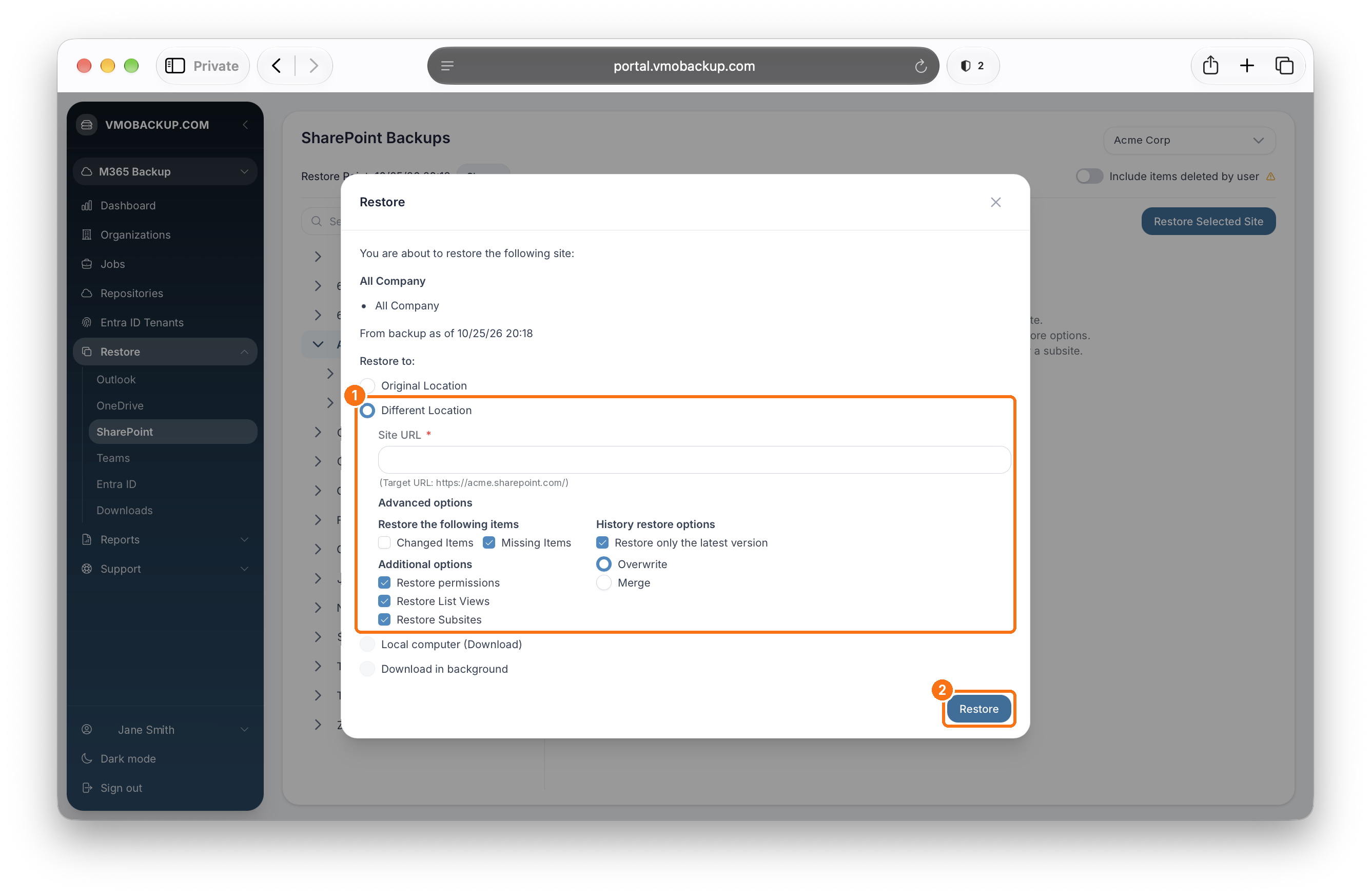
Different Location
Restores to another site. Enter the destination Site URL, then click Advanced options to choose:
- Restore the following items: restore Changed Items, Missing Items, or both.
- Additional options: choose whether to Restore permissions, Restore List Views, and Restore Subsites.
- History restore options: choose whether to Restore only the latest version, and whether to Overwrite or Merge with existing content.
Click Restore.
Local computer (Download) and Download in background
These options appear grayed out when restoring an entire site. They may be available when restoring individual items.
A success message will appear once the restore is complete.