Renewing your organization’s certificate keeps the connection between the VMOBACKUP portal and your Microsoft 365 tenant active. You will need an account with Global Administrator permissions in the Microsoft 365 tenant to complete the renewal.
Open Your Organization
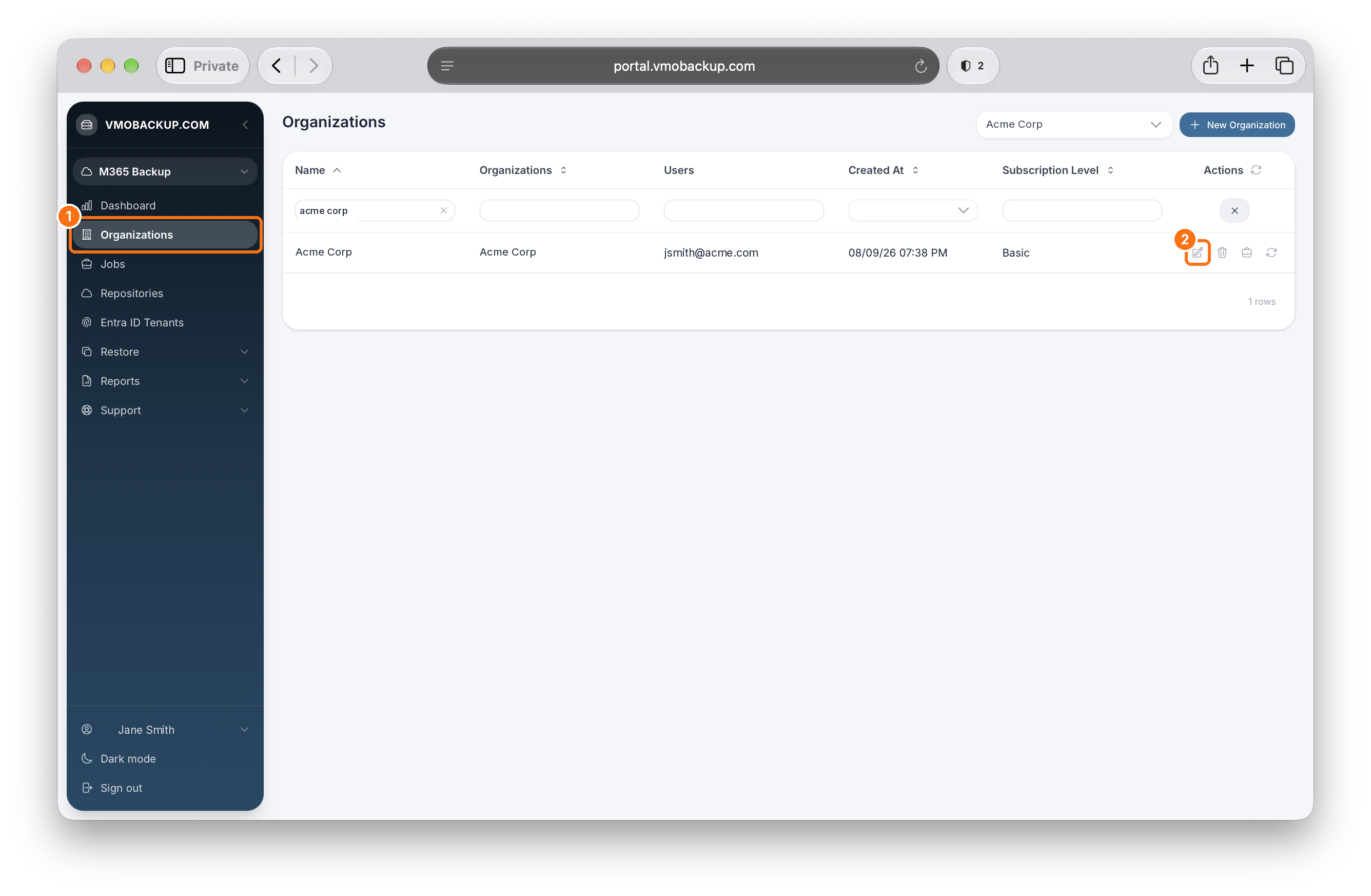
Sign in to the VMOBACKUP portal. From the left-hand navigation, click Organizations. Find your organization, then click the pencil icon under Actions to edit it.
Start the Certificate Renewal
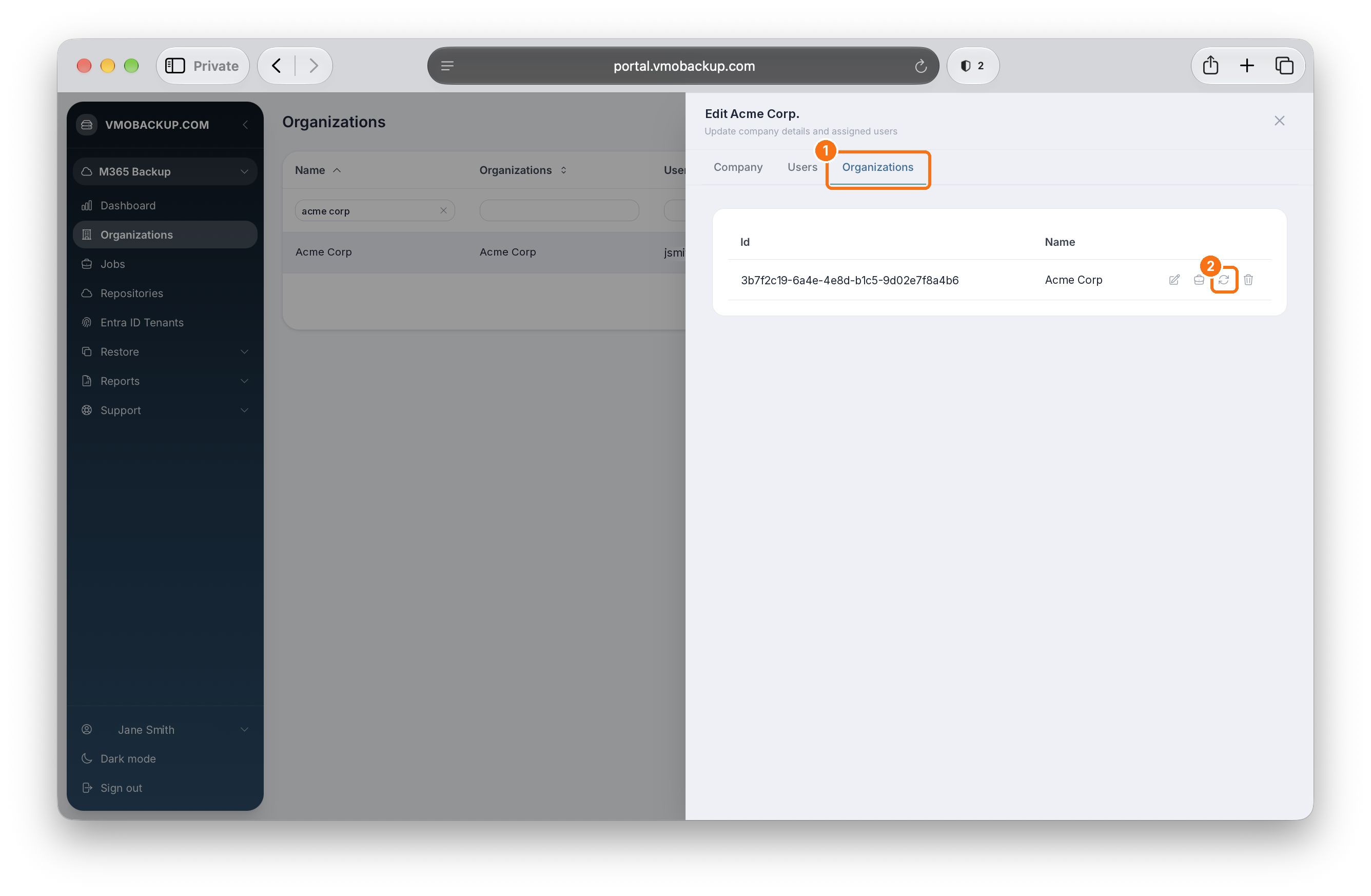
In the edit panel, open the Organizations tab. Click the renew icon next to your organization to start the renewal.
Sign In to Microsoft
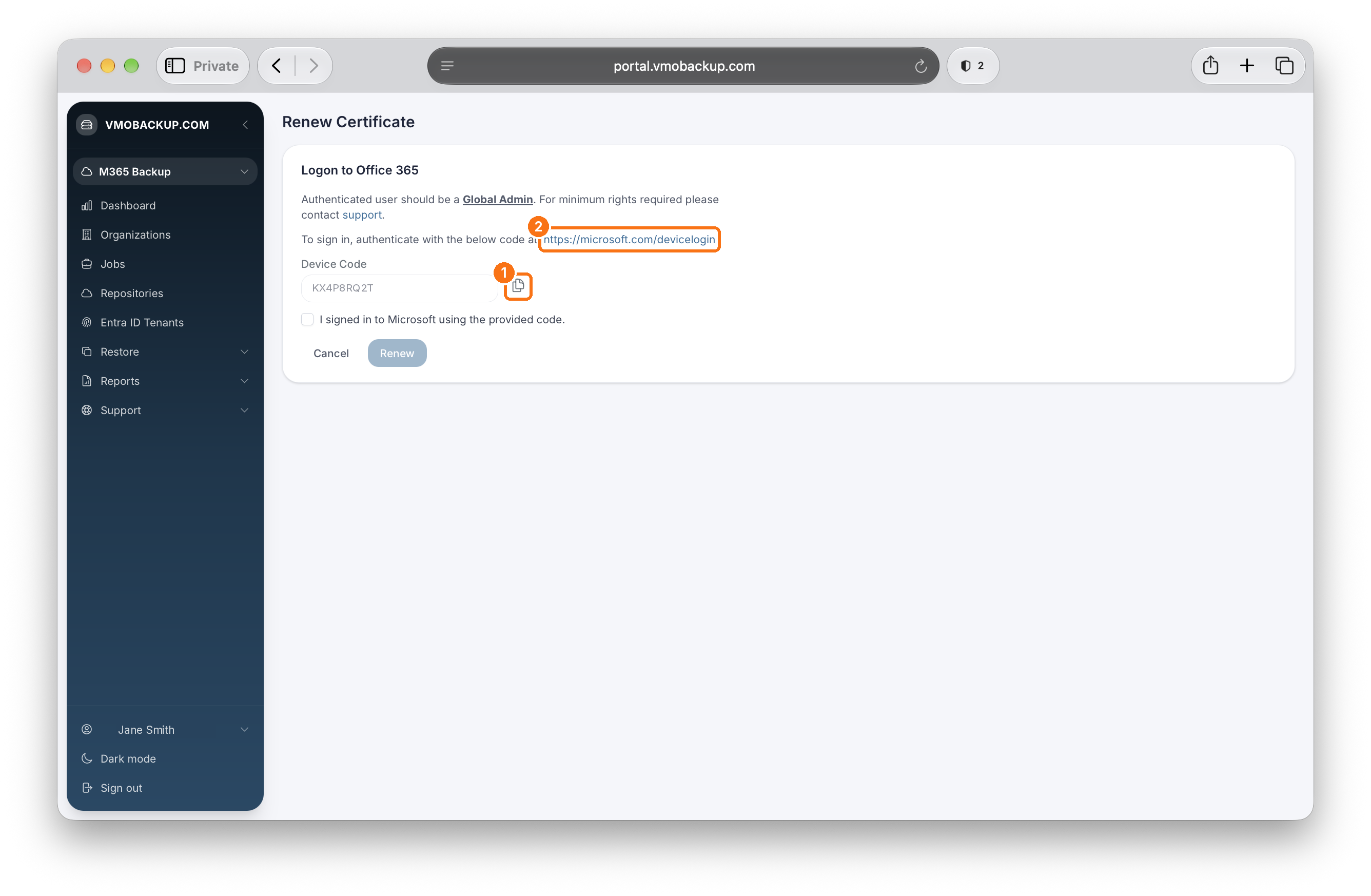
The Renew Certificate page will display a device code.
- Click the copy icon next to the Device Code, then click the https://microsoft.com/devicelogin link.
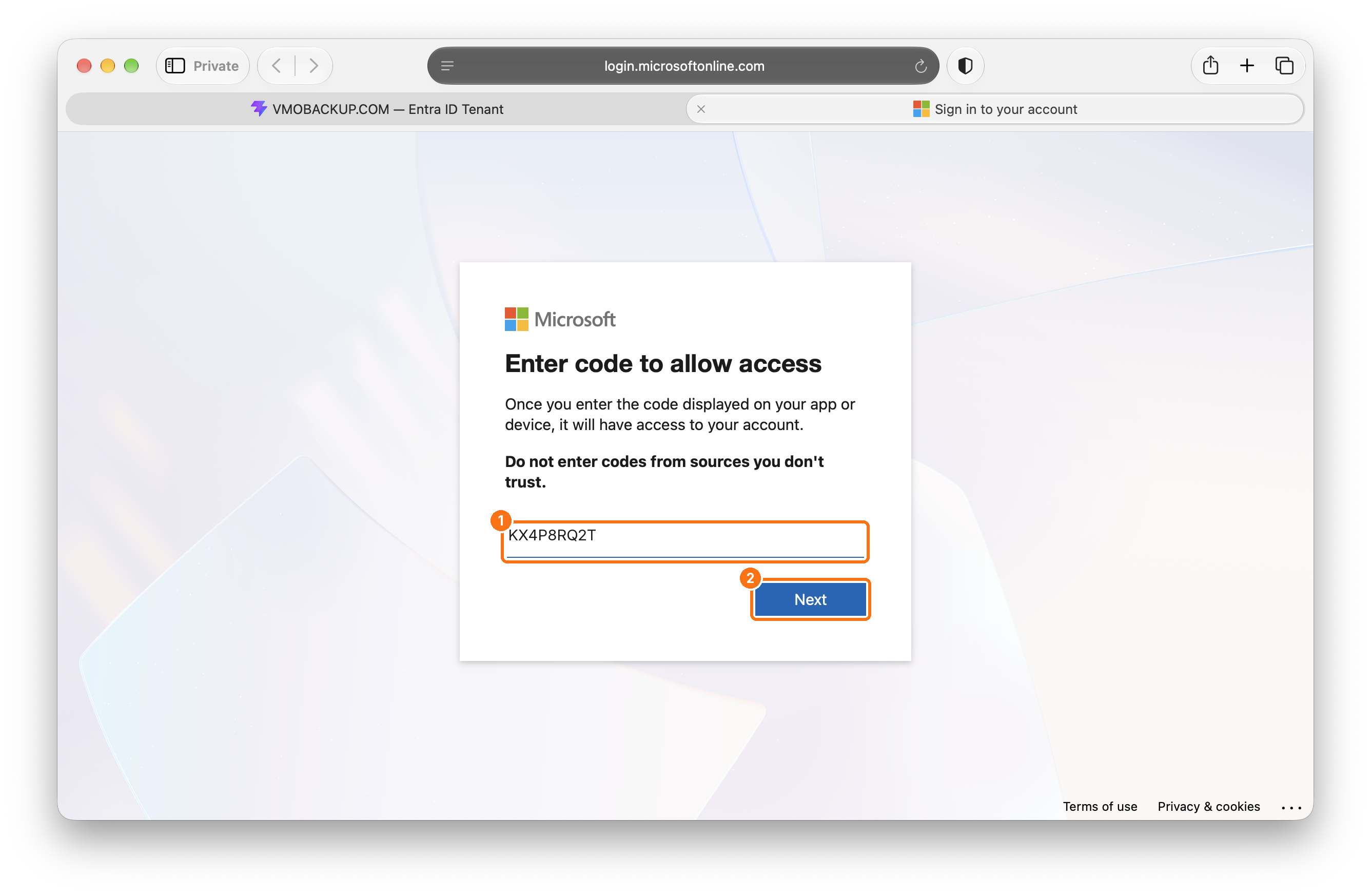
- On the Microsoft page, paste the code and click Next.
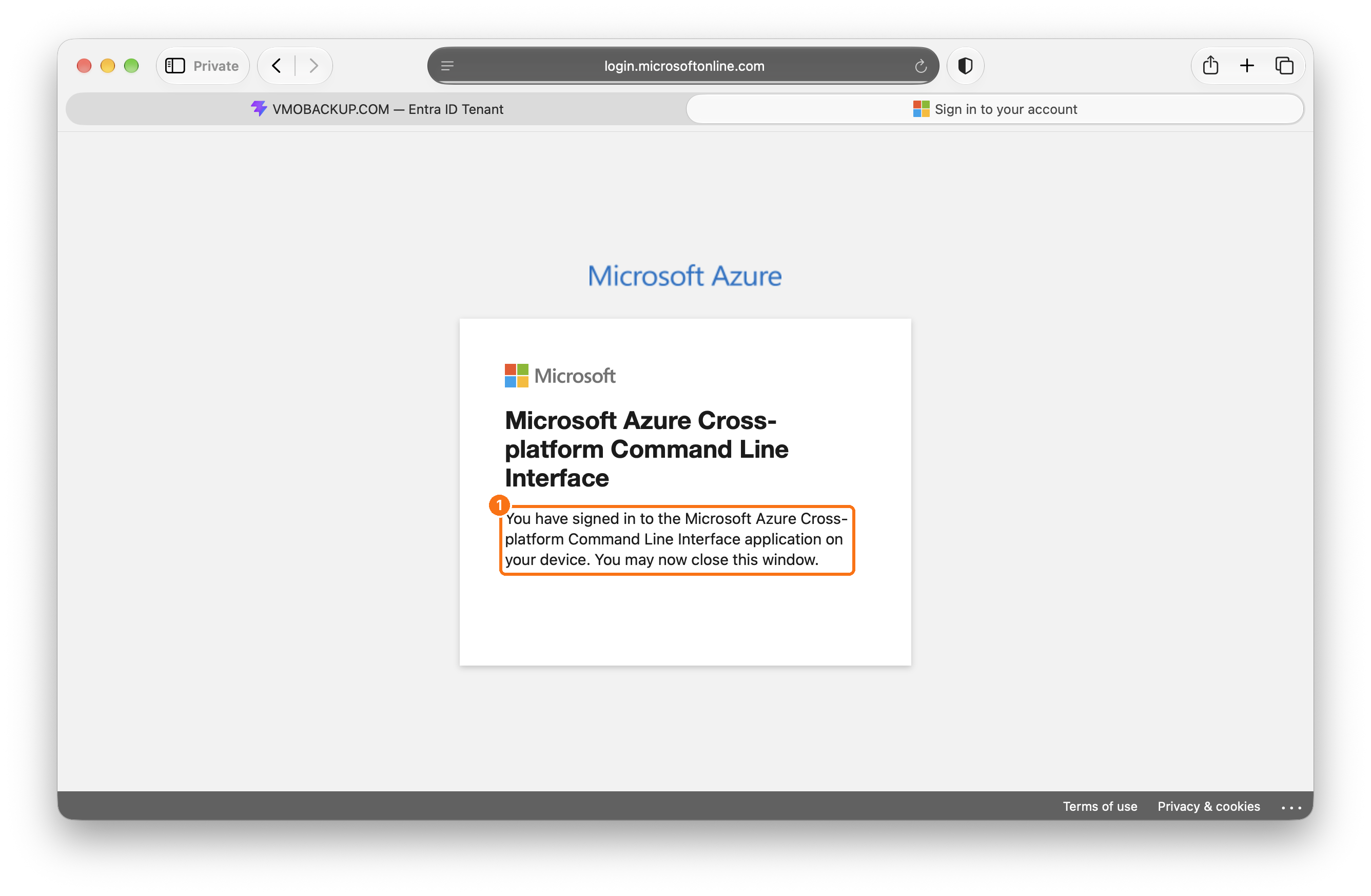
- Sign in with your Global Administrator account and continue through any sign-in prompts. When you see the confirmation that you have signed in, close that window.
Complete the Renewal
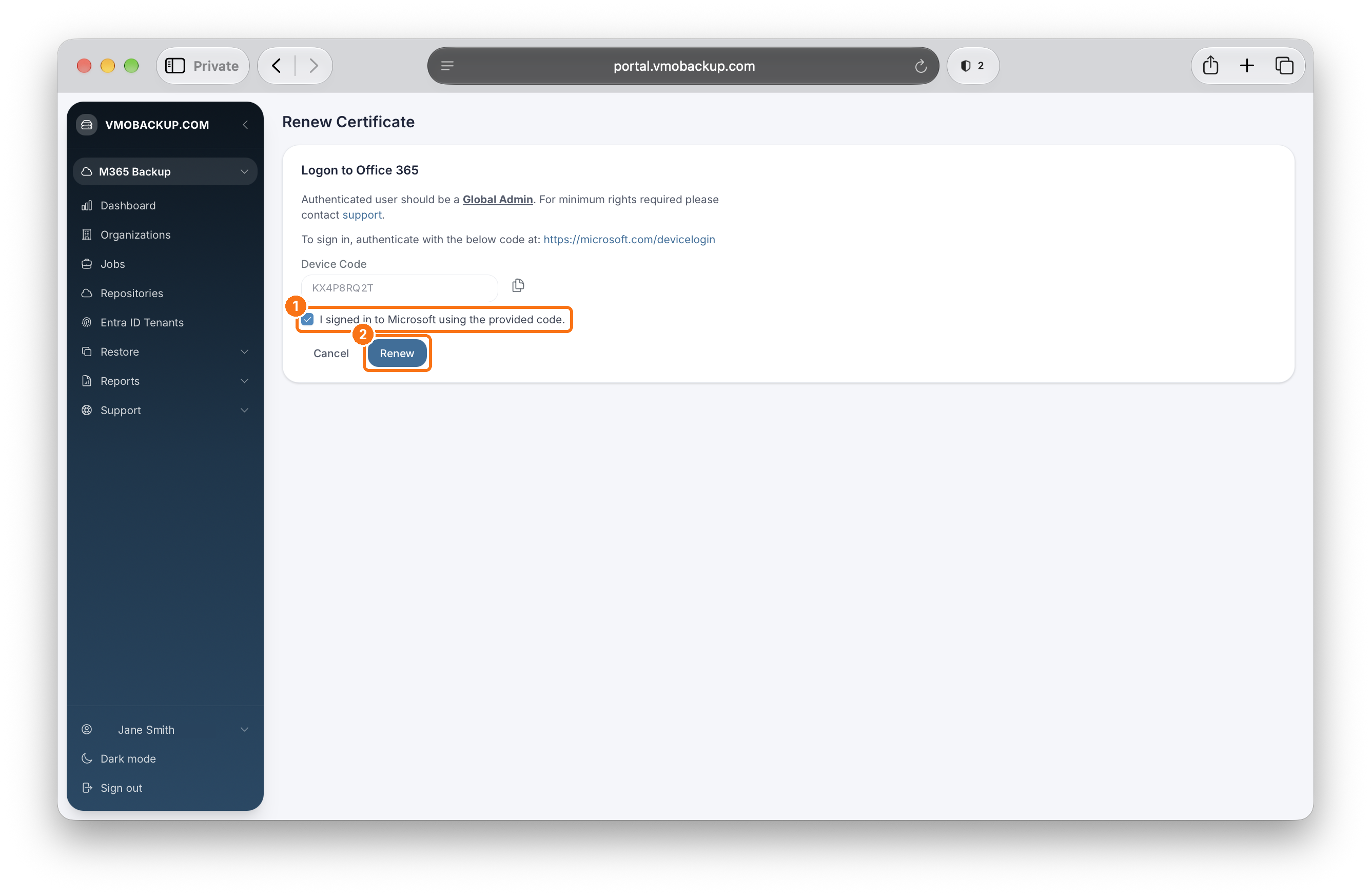
Back in the portal, check I signed in to Microsoft using the provided code, then click Renew. A success message will appear once the certificate has been renewed.