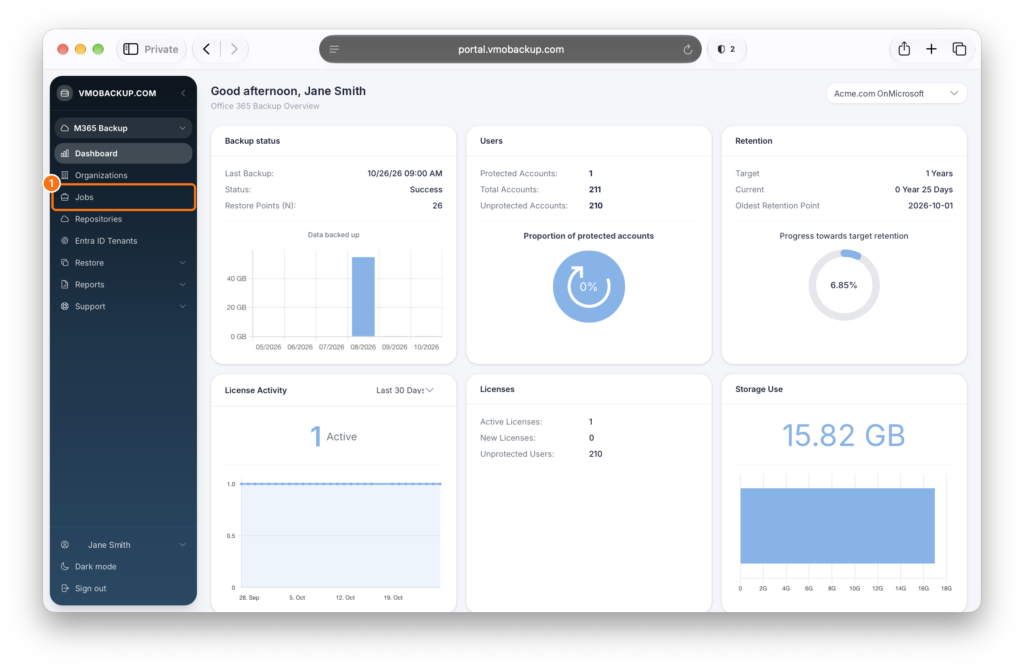
Navigate to the Jobs tab
From the left-hand navigation, click Jobs.
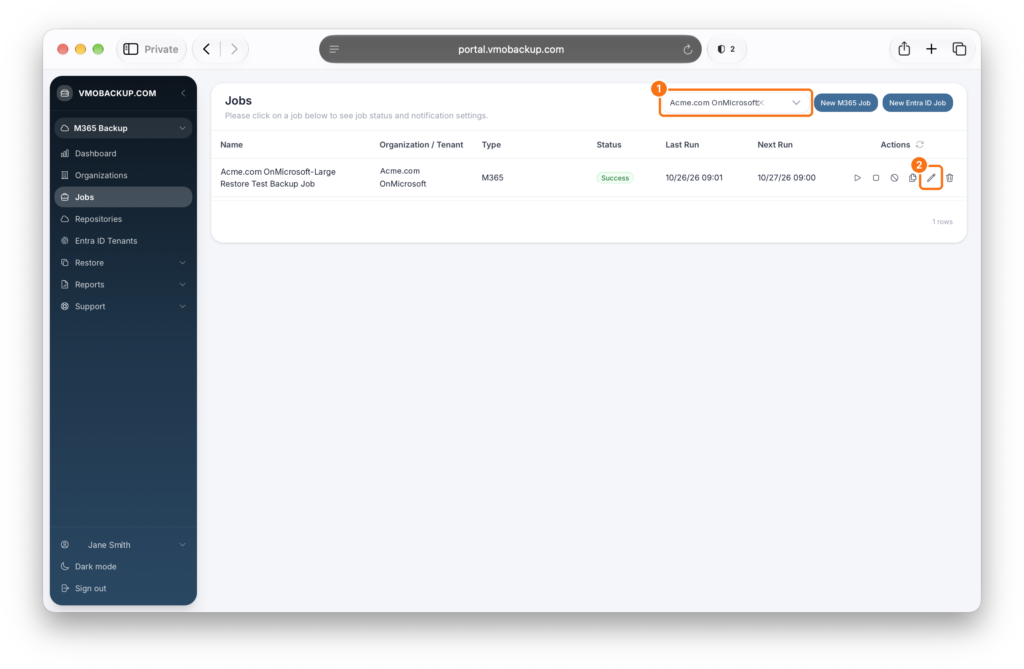
Select the Job to Edit
Select the organization from the dropdown at the top of the page, then click the pencil icon next to the backup job you want to edit.
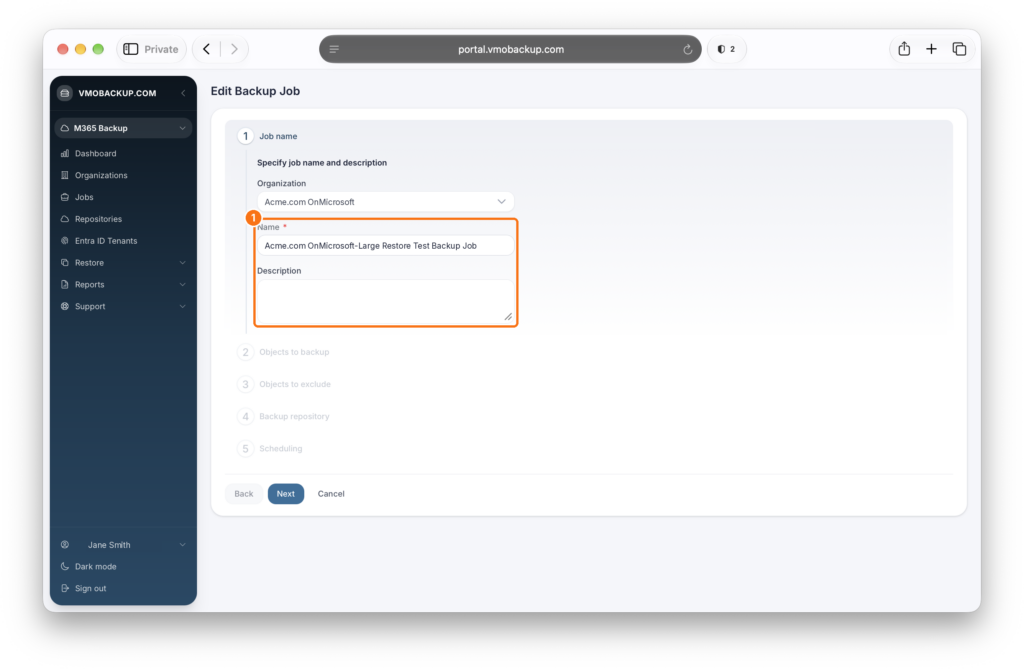
Update Job Name or Description
You can change the job name or add/edit a description here. Click Next to continue.
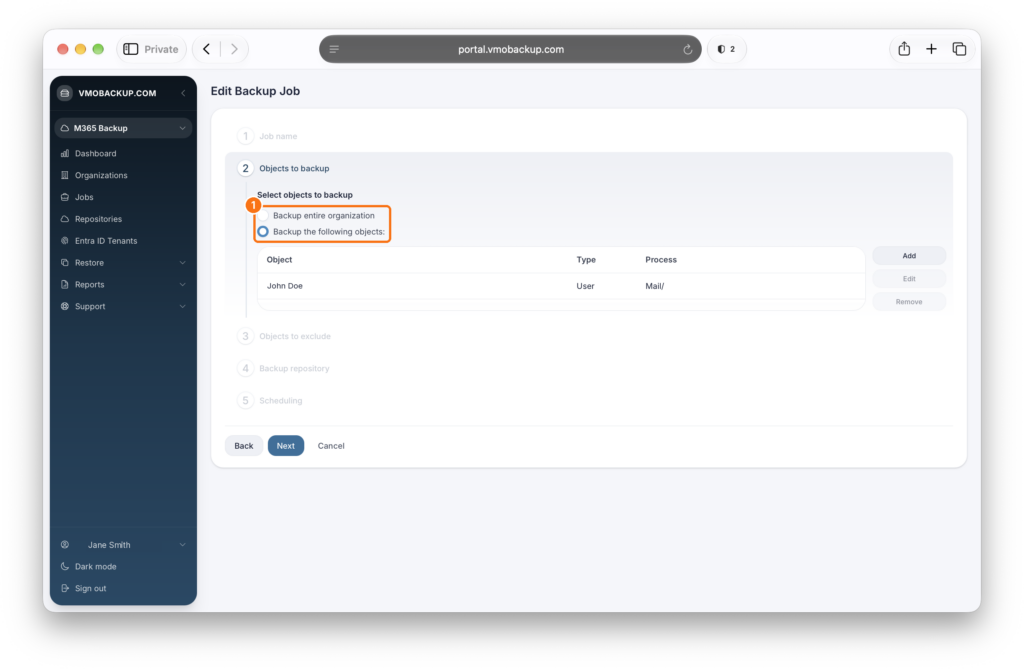
Choose Backup Objects
You can:
- Backup the entire organization, or
- Select specific objects (users, groups, sites, or teams) to include in the backup.
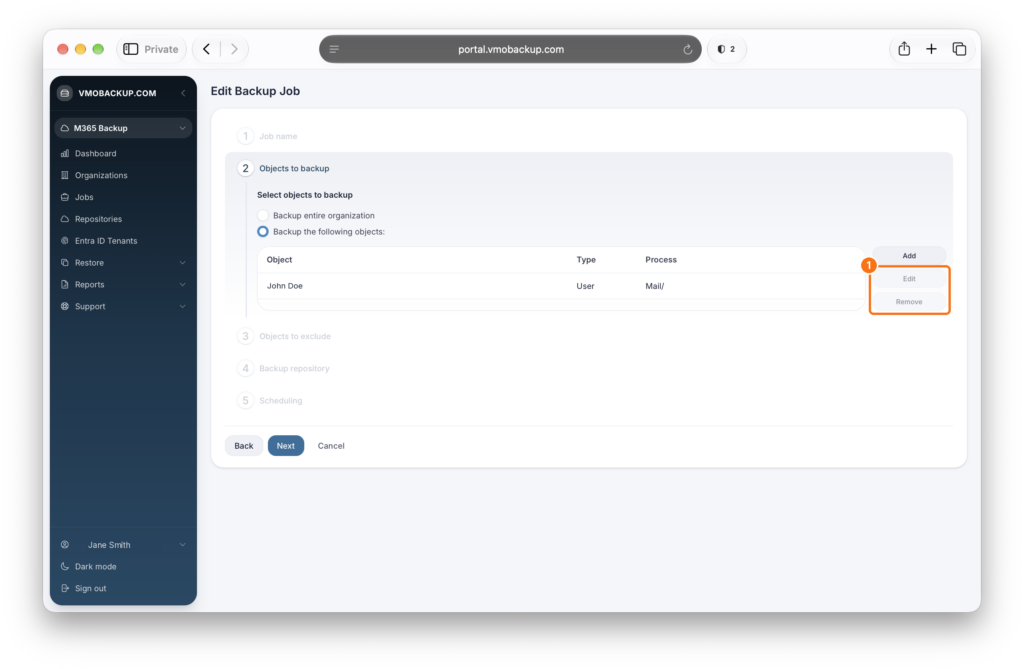
Edit or Remove an Object
Select an object, then click Edit to configure processing options or Remove to take it out of the job. Click Next to continue.
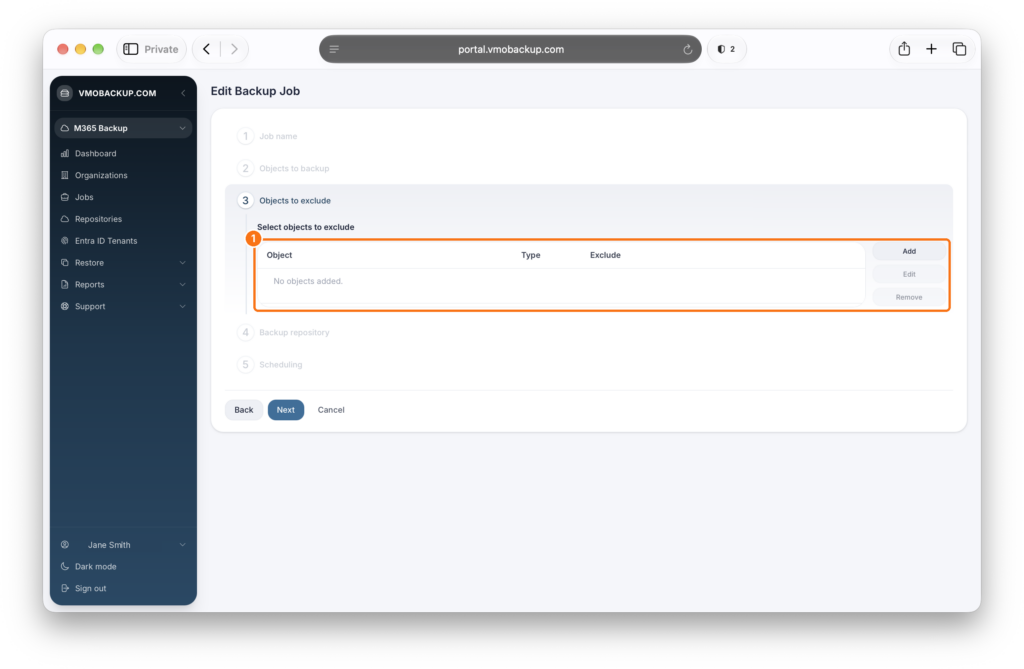
Exclude Objects (Optional)
Click Add to exclude specific users, groups, sites, or teams from the backup. Click Next to continue.
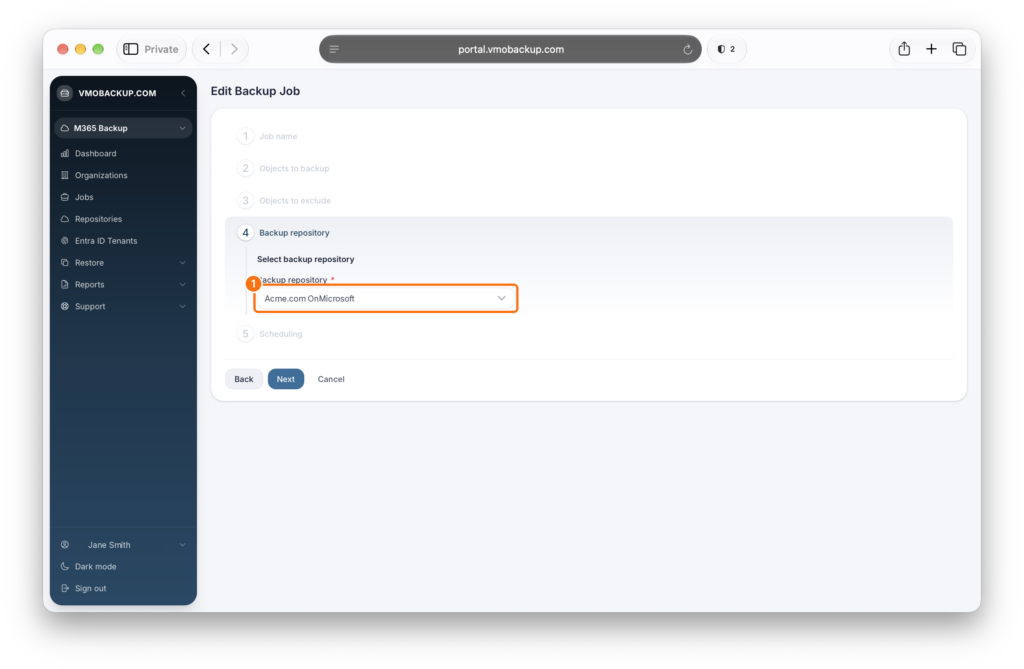
Select Backup Repository
Choose or confirm the desired backup repository from the dropdown. Click Next to continue.
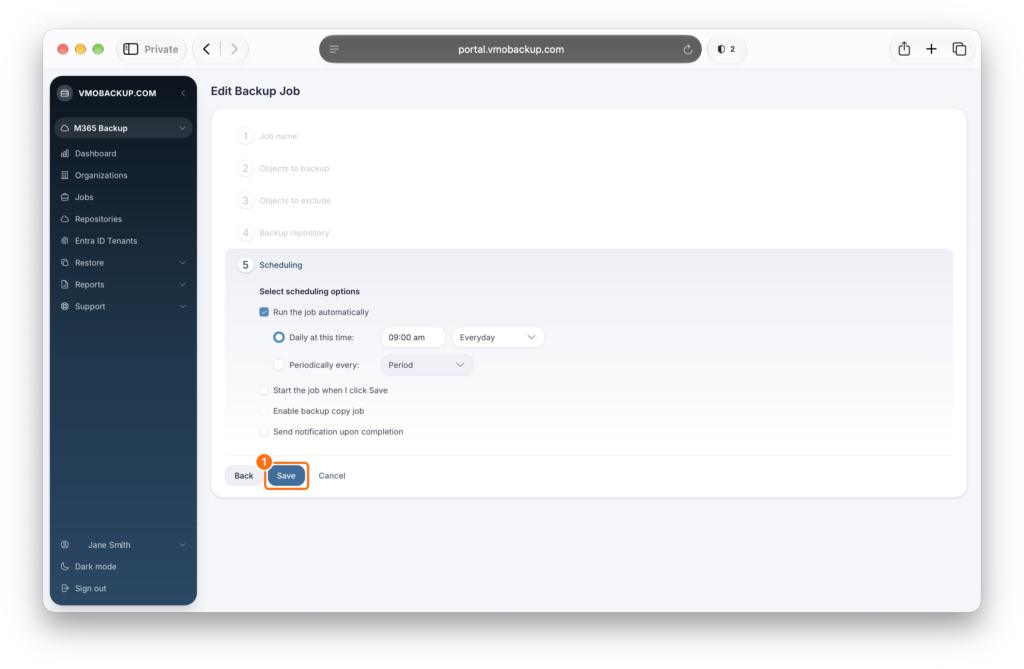
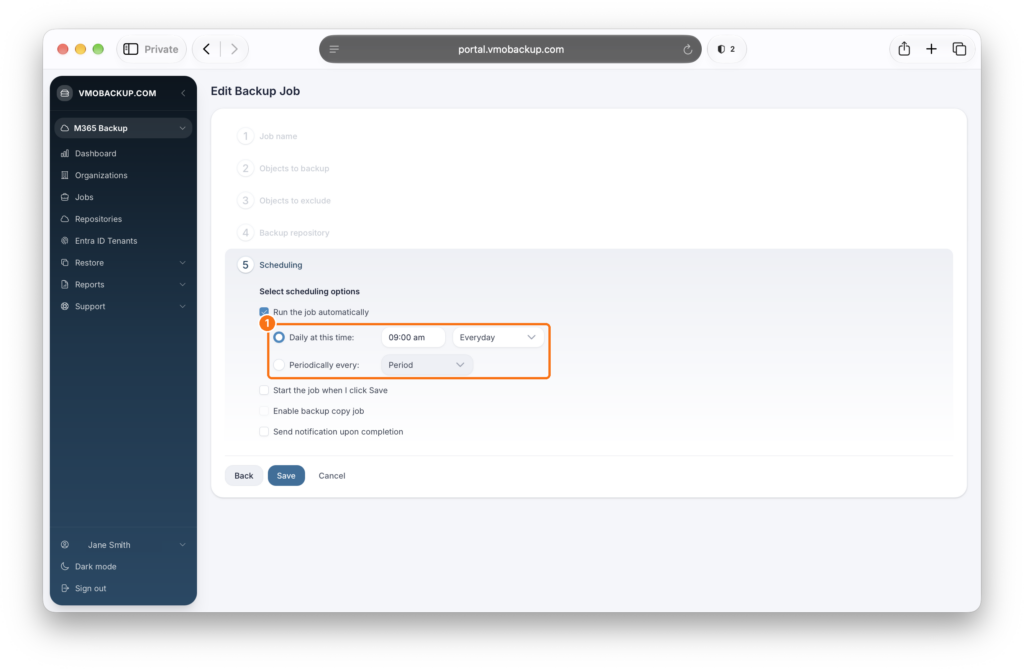
Update the Schedule
Adjust when the job runs:
- Choose a time under Daily at this time, or
- Select Periodically every to run the job at a set interval.
You can also choose to start the job when you click Save, enable a backup copy job, or receive a notification when the job completes.
Review and Save
Review your settings, then click Save to update the job.